 how-to
Integrating Instagram Leads With Scheduling
Table of Contents
- Why Instagram Leads Need Immediate Scheduling Integration
- Setting Up Your Instagram Business Account
- Building Your Instagram Lead Form to Calendar Workflow
- How to Automate Instagram Lead Follow-Up
- Instagram Appointment Booking Automation in Action
- Troubleshooting Common Integration Issues
- Measuring Lead Response Time and Booking Success
- Frequently Asked Questions
Last Updated: October 11, 2026
Why Instagram Leads Need Immediate Scheduling Integration
When someone fills out your Instagram lead form, speed matters. The first few minutes determine whether they book with you or move to a competitor. Integrating Instagram leads with scheduling eliminates friction: prospects receive a calendar link or booking confirmation instantly, no back-and-forth, no manual data entry, no forgotten follow-ups.
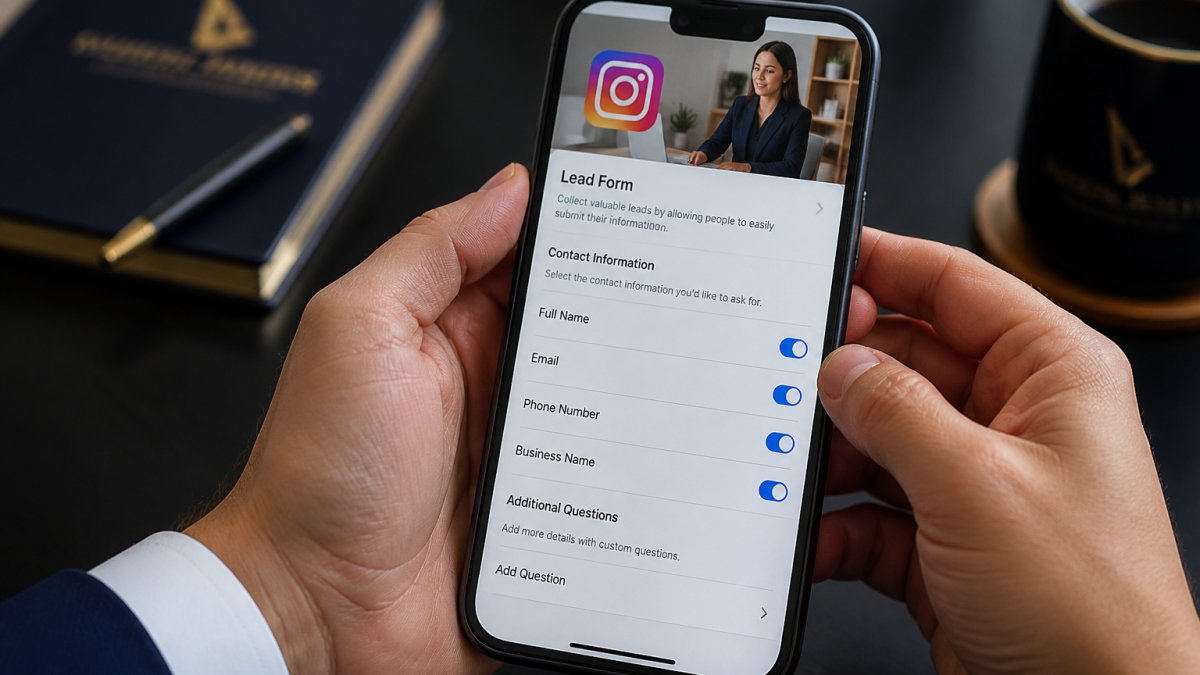
This workflow works for any service business: home services confirm same-day appointments, law firms schedule consultations instantly, wellness businesses book discovery calls without phone tag. Your calendar stays in sync, availability updates in real time, double bookings disappear, and your team closes deals instead of managing spreadsheets.
Setting Up Your Instagram Business Account
Convert to a Business Account if you haven't already. Go to Settings > Account Type and Switch, then choose a category matching your business. Connect your Instagram account to Meta Business Manager and add team members with appropriate permissions. Verify your business information: add phone number, email, and service area.
Configuring Lead Form Fields for Calendar Data
Your lead form fields determine what information flows into your calendar system. Ask only for what you need to book and follow up.
Essential fields: Full name, Email address, Phone number, Preferred service date and time, Service type or reason for contact.
Optional fields: Location or service address, Budget range, Current situation or pain point.
Map each field to your calendar system's requirements. Test your form before going live by submitting a test lead and verifying name, email, and phone number sync correctly.
Building Your Instagram Lead Form to Calendar Workflow
Choosing Your Integration Method
You have three paths: native integrations, automation platforms, or custom APIs.
Native integrations connect Instagram directly to your calendar through Meta's official API in 15-30 minutes with no coding, but are limited to pre-approved partners.
Automation platforms like Zapier, Make, or Pabbly take 1-2 hours to set up and work with nearly any calendar or CRM, offering flexibility but requiring management of an extra platform.
Custom APIs give complete control but require 2-4 weeks to build. For most service businesses, automation platforms hit the sweet spot: fast setup, reliable, no developer needed.
Setting Up Native Integration (If Available)
If your calendar system is on Meta's supported list: Go to Instagram Business Account Settings > Apps and Websites > Leads, click "Set Up Lead Ads Integration," select your destination platform, authorize Instagram, map your lead form fields, and test with a sample lead.
Setting Up Automation Platform Integration
If your calendar system isn't natively supported: Create a Zapier account, create a new Zap with "Instagram Lead Ads" as the trigger, authorize Instagram and your calendar/CRM system, map fields, test by submitting a sample lead, and turn on the Zap once verified.
Mapping Fields and Testing the Connection
Field mapping routes data from your Instagram form to the correct fields in your calendar or CRM. Incorrect mapping is the #1 cause of integration failures.
Essential mapping for calendar booking: Instagram "Full Name" → Calendar "Event Title"; Instagram "Email Address" → Calendar "Guest Email"; Instagram "Phone Number" → Calendar "Contact Phone"; Instagram "Preferred Date" → Calendar "Event Date"; Instagram "Preferred Time" → Calendar "Event Time"; Instagram "Service Type" → Calendar "Event Description".
Mapping for CRM: Instagram "Full Name" → Contact "First Name" + "Last Name"; Instagram "Email Address" → Contact "Email"; Instagram "Phone Number" → Contact "Phone"; Instagram "Service Type" → Deal "Deal Name"; Instagram "Preferred Date" → Deal "Close Date".
Common mapping problems and fixes:
| Problem | Cause | Fix |
|---|---|---|
| Name appears as "John Smith" in a single field, but calendar expects "First Name" and "Last Name" separately | Instagram form captures full name; calendar has split fields | Use a formula in your automation platform to split the name on the space character |
| Phone number arrives as "2125551234" but calendar displays it as "(212) 555-1234" | Format mismatch | Add a formatter step in your automation platform to apply phone number formatting |
| Date appears as "10/15/2026" but calendar shows it as "October 15, 2026" | Date format mismatch | Ensure both systems use the same date format, or use a date formatter in your automation platform |
| Email field is blank even though prospect filled it out | Email field is optional in Instagram form | Make email required in your Instagram lead form settings |
| Time zone is off by several hours | Calendar and automation platform have different time zone settings | Verify both systems are set to the same time zone (e.g., Eastern, Central, Mountain, Pacific) |
How to Automate Instagram Lead Follow-Up
Triggering Automated Messages After Lead Capture
Set up an automated response that fires within seconds of submission. Best practice: Send an Instagram DM, then email. Instagram DM keeps conversation in-platform but delivery isn't guaranteed. Email is reliable and creates a reference record. SMS has a high open rate but requires opt-in consent.
Immediate response message template:
"Thanks for reaching out! We received your request and we're excited to help. Click here to schedule: [calendar link]. Or reply if you have questions."
This confirms receipt, provides immediate booking, and offers an alternative contact method. Keep under 160 characters for SMS or 300 for DM.
Setting Follow-Up Sequences Based on Response Time and Booking Status
Set up a multi-step follow-up sequence triggered by booking status and time elapsed. AI Lead Follow-Up Automation can handle these sequences automatically, ensuring no lead falls through the cracks:
Hour 0: Send initial message with calendar link. Hour 24 (if no booking): "We noticed you haven't scheduled yet. We'd love to help. Reply or call [phone number]." Hour 72 (if still no booking): "This is our last follow-up. We have limited availability next week. Call [phone number] or reply to secure your spot." After booking: Send confirmation with date, time, duration, and prep instructions. If they miss: "We missed you at your appointment. We'd still love to help. Reply or call [phone number] to reschedule."
Configure these sequences in your automation platform or CRM using conditional logic: "If lead hasn't booked within 24 hours, send message B. If booked, send confirmation."
Measuring Lead Response Time, Booking Rate, and Conversion
Track these key metrics:
Response time: Gap between form submission and first message. Aim for under 5 minutes.
Booking rate: Percentage of leads booking through your integrated link versus requiring manual follow-up.
Lead-to-appointment conversion rate: Percentage of leads who book (any method).
Show rate: Percentage of booked appointments that actually occur.
Lead-to-close rate: Percentage of leads who become paying customers.
Where to track these metrics:
- Response time: Automation platforms show lead capture and first message time. Calculate the difference.
- Booking rate: Your calendar shows appointments created. Divide by total leads.
- Conversion rate: Your CRM tracks leads and deals. Divide deals by leads.
- Show rate: Track no-shows in your calendar or CRM.
Optimization based on metrics:
Slow response time (over 5 minutes): Automate more. Move from email-only to email + SMS. Use "instant" triggers.
Low booking rate: Simplify your calendar link. A/B test different follow-up messages.
Low conversion rate: Review unconverted leads. Did they book but not show? Never respond? Respond but not book? The answer shows where to focus.
Low show rate: Send 24-hour reminder with reschedule link.
Setting Up Lead Scoring and Routing
Route high-intent leads to your best salesperson and low-intent leads to automated follow-up. AI Lead Qualification can automatically score and categorize your leads based on their responses and engagement level.
Lead scoring criteria:
- Filled out all optional fields: +10 points
- Selected specific service type: +5 points
- Selected date/time within 7 days: +5 points
- Provided phone number: +3 points
- Came from paid ad: +5 points
20+ points = high-intent (immediate phone follow-up). 10-19 points = medium-intent (email sequence). Under 10 points = low-intent (automated message + calendar link). Most CRMs support lead scoring; set rules once and the system assigns points automatically.
Instagram Appointment Booking Automation in Action
Syncing Calendar Availability to Instagram Lead Forms
Most automation platforms sync your calendar availability to your Instagram lead form in real time. When your calendar updates, available times in the form update automatically. Prospects see real availability, book confirmed slots, and your team avoids "that time is taken" conversations.
Preventing Double Bookings and Conflicts
Prevent double bookings with a confirmation step: send bookings to your team for 5-minute approval before confirming. Mark Instagram bookings as "tentative" until confirmed. For higher-volume businesses, set maximum appointments per time slot so the form doesn't offer booked times.
Troubleshooting Common Integration Issues
Leads Not Appearing in Your Calendar or CRM
If leads vanish, check your connection first. Log into your automation platform and verify the integration is active.
Most issues: (1) Lead form fields don't match calendar fields, verify your mapping. (2) Automation platform ran out of API calls, check your plan limits. (3) Calendar rejected data due to missing required fields, make phone and email required in your Instagram form.
Fix incomplete data first: require phone and email in your form. Most sync problems disappear once every lead has these basics.
Incomplete Data or Missing Contact Information
Make critical fields required: name, email, and phone. Keep optional fields to a minimum, every additional field drops completion rate. Limit required fields to three or four. Ask for more information after they book via follow-up form or consultation call.
| Problem | Cause | Fix |
|---|---|---|
| Phone number missing | Field marked optional | Make phone required in form |
| Name formatting wrong | Name field splits first/last | Update mapping to combine fields |
| Email bouncing | Typo in email field | Add email verification to form |
| Date not syncing | Date format mismatch | Adjust automation platform date settings |
Measuring Lead Response Time and Booking Success
Track two metrics: how fast you respond to leads, and how many actually book.
Response time matters. Measure the gap between when a lead submits their form and when they receive your first message. Aim for under 5 minutes.
Booking rate shows whether your workflow converts leads to appointments. Track how many leads book through the integrated form versus how many need manual follow-up.
Use these numbers to improve. If your response time is slow, automate more. If your booking rate is low, simplify your calendar link or test different follow-up messages.
Integrating Instagram leads with scheduling removes the biggest bottleneck in service businesses: the gap between interest and action. When prospects can book instantly, they do. When your team doesn't manually process leads, they close more deals.
Vaz Global Capital specializes in building these workflows for service-based businesses. We handle the technical setup so your team focuses on delivering great service.
Frequently Asked Questions
How do you connect Instagram leads to a scheduling tool?
Connect your Instagram Business account to an automation platform or API that supports webhooks. Most integrations work by sending lead data from Instagram lead forms directly to your calendar tool, Google Calendar, Calendly, or your CRM's scheduling module. Set up the connection by authorizing Instagram, mapping your lead form fields to calendar fields (name, email, phone, preferred date/time), and testing with a sample lead. Once live, new leads automatically populate your schedule.
Can Instagram lead ads automatically create appointments?
Yes, if your lead form collects the required information (contact name, email, phone, and preferred appointment date/time) and you connect it to a scheduling system. Automation platforms can instantly create calendar entries, send confirmation emails, and trigger follow-up workflows. However, the lead must select an available time slot during the form submission, your calendar availability must sync to the form in real time to prevent overbooking.
What information should an Instagram lead form collect for appointment booking?
Collect: full name, email address, phone number, service or product of interest, and preferred appointment date and time. For service businesses, also ask location or which team member they prefer. Keep the form to 5-7 fields maximum to reduce drop-off. Each field should map directly to your calendar or CRM so automation can create the appointment without manual data entry.
How do you prevent duplicate appointments from Instagram leads?
Use unique identifiers in your automation, typically email address or phone number. Configure your system to check if the contact already exists before creating a new calendar entry. Set a rule that if a duplicate lead arrives within a set timeframe (e.g., 10 minutes), it updates the existing appointment rather than creating a second one. Test this logic before going live to catch edge cases.